Endpoint Tests
Full access feature
Endpoint Tests require full hosted access. Learn more
Endpoint Tests let you run an Endpoint against many input combinations at once. You upload an Excel file where each row is a test case. RuleX processes every row of every sheet and returns a results file with inputs and outputs side by side.
Preparing the test file
Open the Endpoint in RuleX Admin and click Download Sample Test Excel under Run Tests dropdown. The sample file has one column per Schema input, with the correct headers already filled in.
Add your test data, one row per test case, and save the file.
Running a test
Click Upload Test Excel on the Endpoint page and select your file.
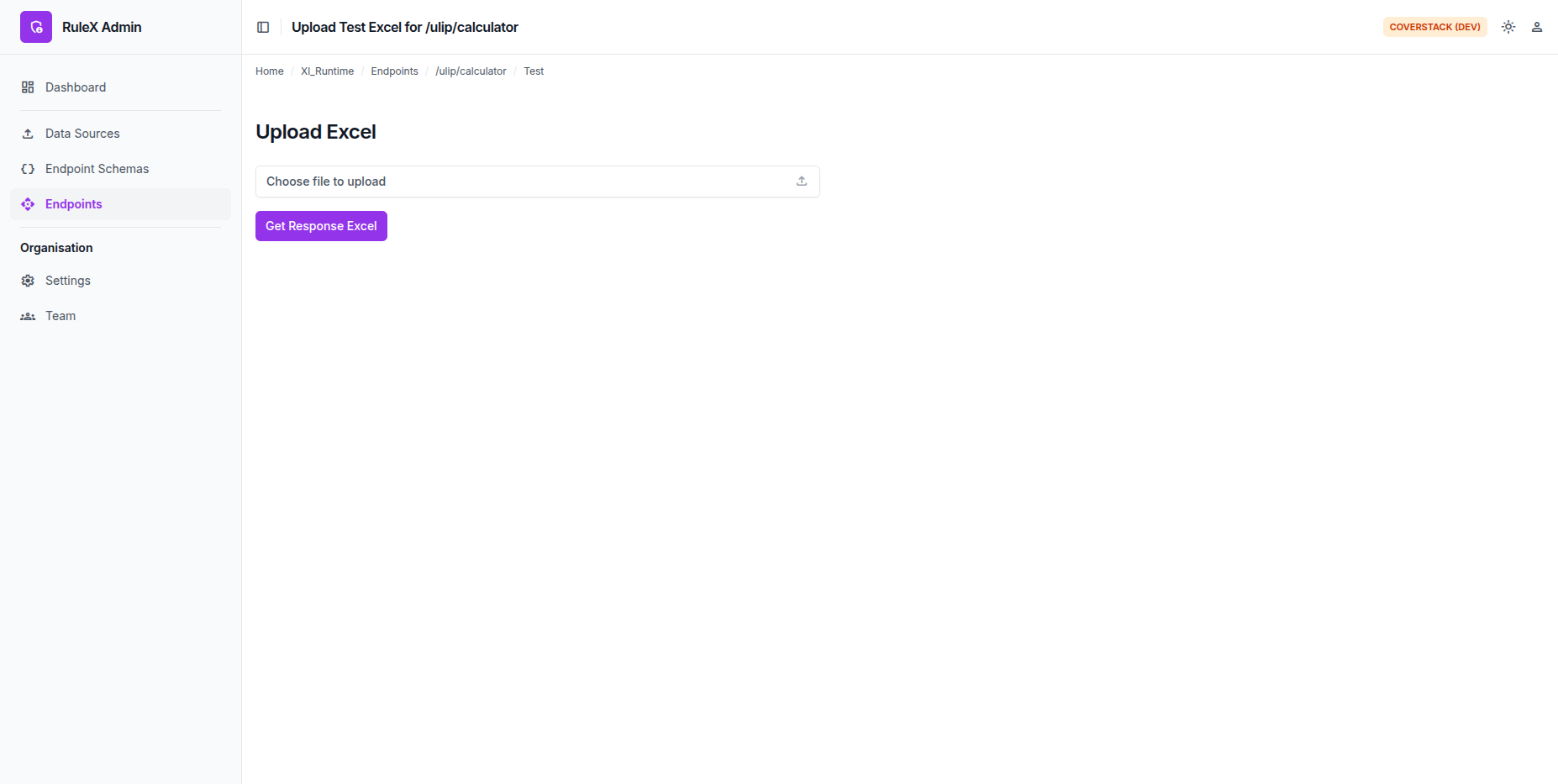
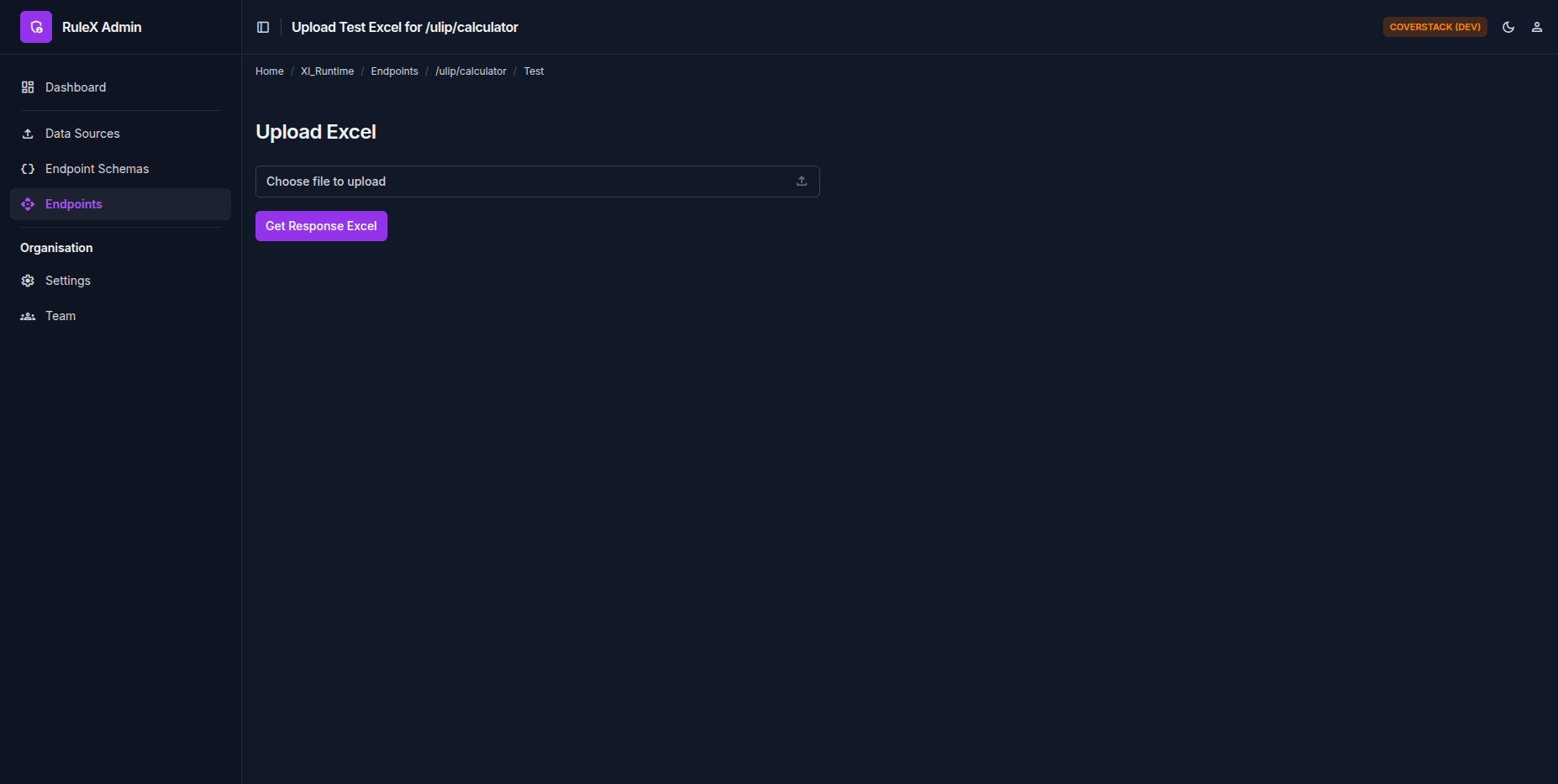
RuleX runs each row through the model. The test goes through these statuses:
| Status | Meaning |
|---|---|
| Pending | Queued |
| Executing | Running |
| Completed | Done, results ready |
| Failed | Something went wrong |
Downloading results
Once the status is Completed, click Download to get the results file. It contains all your input columns plus one column per Schema output. If any of the input data fails the Data Validation rules, it is highlighted with an error note.
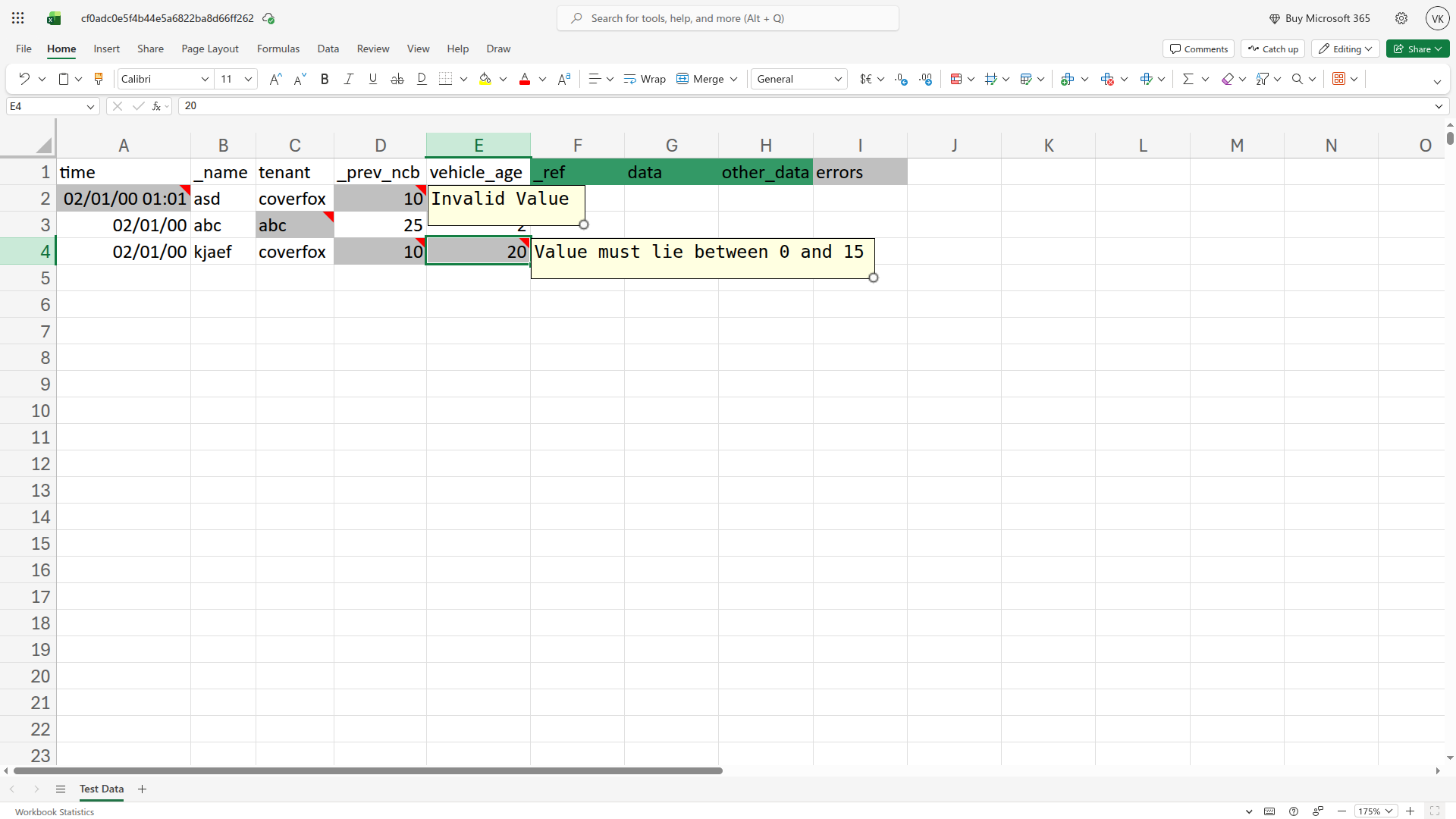
Output cells that contained a formula error (such as #VALUE!) appear as that error
string in the results file, exactly as Excel would display them.
Note
If you have used formulas to derive input data, only the computed value at the time of file save is read as the input. RuleX does not evaluate the formulas.
Results are written directly into the uploaded Excel file as new columns. Existing data, formulas, and formatting are left intact.