2. Define a Schema
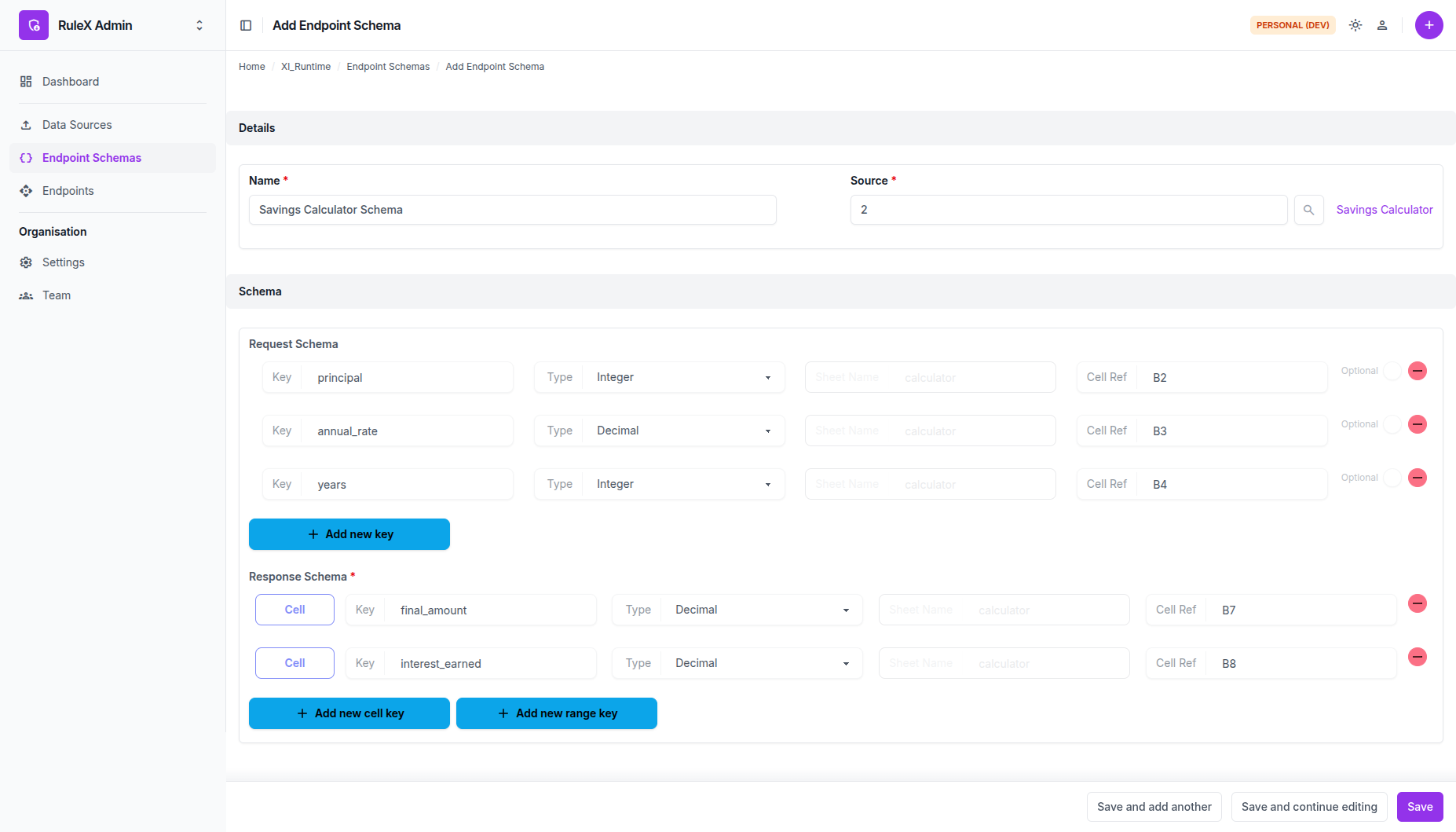
An Endpoint Schema maps named fields to specific cells in your spreadsheet. It defines the contract between your model and the consumers who call it: what inputs they must send and what outputs they will receive.
Create the Schema
- Go to Data Sources in RuleX Admin and open
Savings Calculator. - Click Create New Schema (next to the history button).
The schema name and Data Source link are pre-filled. Set the name to
Savings Projection. The input and output form is
built immediately, so you can start mapping cells without saving first.
Add inputs
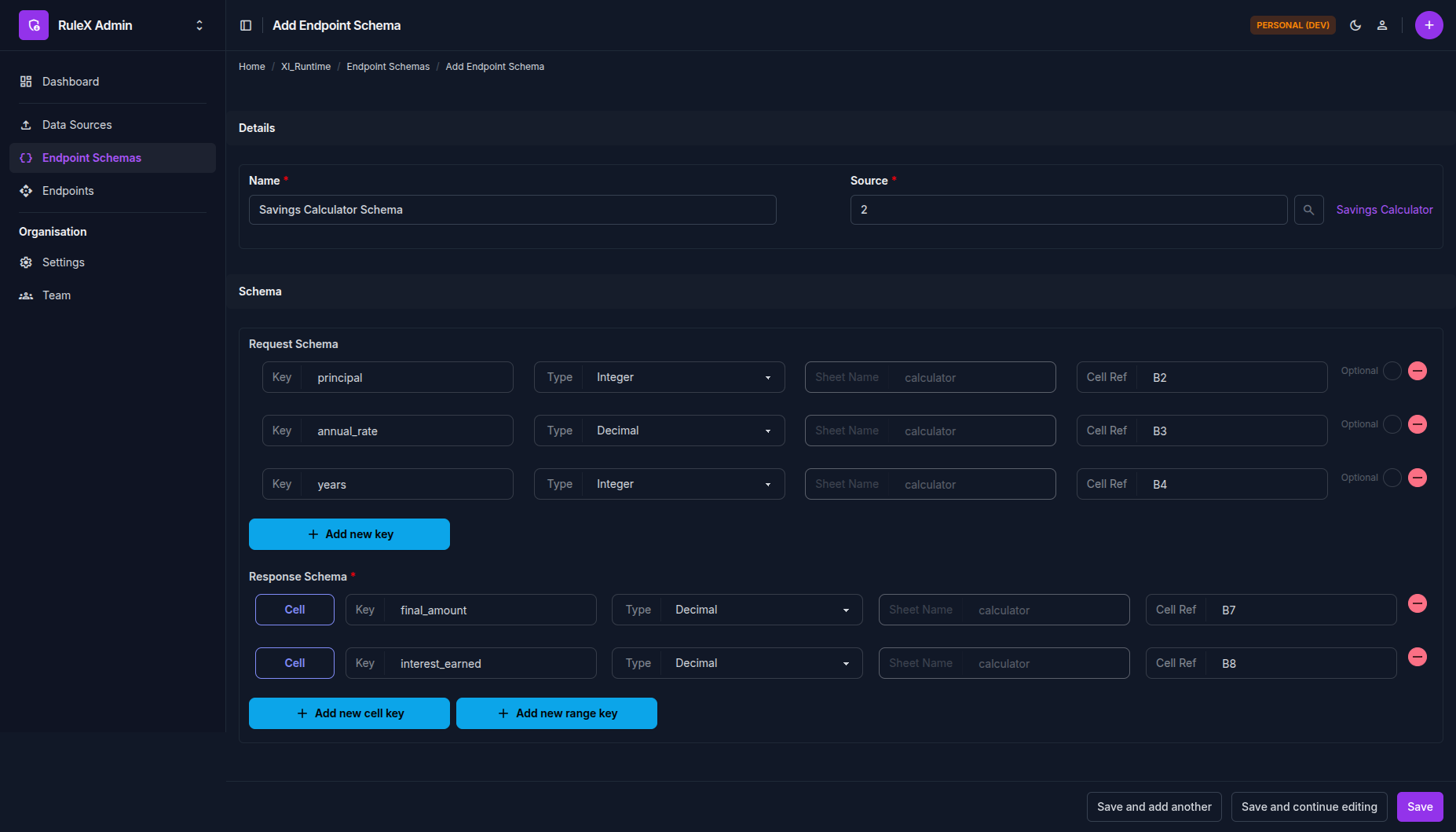
Add three inputs, one for each static cell:
| Name | Value Type | Sheet Name | Cell Reference | Optional |
|---|---|---|---|---|
| principal | Integer | calculator | B2 | Unchecked |
| annual_rate | Decimal | calculator | B3 | Unchecked |
| years | Integer | calculator | B4 | Unchecked |
Add outputs
Add two outputs, one for each formula cell:
| Reference Type | Name | Value Type | Sheet Name | Cell Reference |
|---|---|---|---|---|
| Cell | final_amount | Decimal | calculator | B7 |
| Cell | interest_earned | Decimal | calculator | B8 |
Save
Click Save and continue editing. The Schema is ready. Your bank partners will send the three inputs and receive the two outputs on every call.